Intro
Let’s be honest — video editing is a pain. You sit down to cut a simple 10-minute video, and suddenly two hours are gone. Timelines, tiny cut points, audio that drifts… it’s enough to make anyone quit.
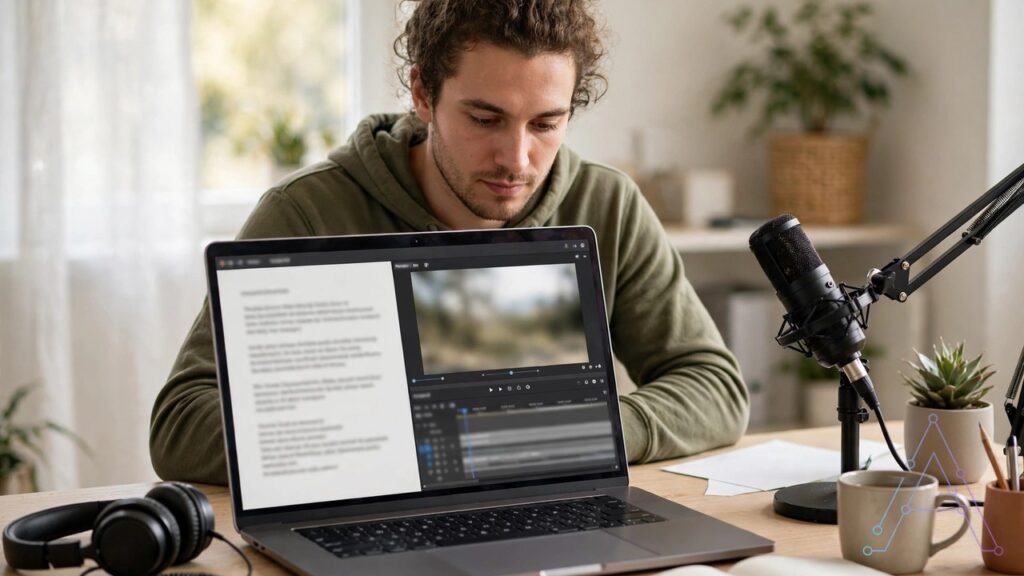
Here’s where Descript flips the whole thing around. Instead of scrubbing through a timeline, you edit words on a page. Delete a sentence from the transcript, and poof — that part of the video is gone too. It feels way more like fixing up a Word doc than editing video.
So I dug into Descript as it stands in 2026: what it actually does, what it costs, and who should (and shouldn’t) pay for it. No jargon, no fluff. Just the stuff that matters if you’re a student, a freelancer, or a new creator trying to publish more often.
Editor’s Choice: Descript Creator plan, $24 a month on yearly billing. In fact, you get 30 media hours, 800 AI credits, and 4K export. For most YouTubers, podcasters, and freelancers, that’s the sweet spot of the whole lineup. I’ll show you why below.
What Is Descript?
In plain terms, Descript is an AI video and audio editor built around one clever trick: the transcript IS the timeline.
You record inside Descript, or you upload a file you’ve already made. In addition, Descript writes out everything you said, word for word. Then you edit that text. Cut a word, the video cuts. Shuffle a sentence, the clip moves with it. It’s weirdly satisfying the first time you try it.
Why do podcasters and course creators swear by it? Because talking videos — the kind most of us actually make — take far less time to edit this way. In addition, you don’t need to learn a complicated timeline before your first decent edit.
Quick bit of background: Descript started in 2017, founded by Andrew Mason (yes, the Groupon guy). In addition, Descript says more than 6 million creators use the tool these days. That’s a lot of people editing by text.
How Text-Based Editing Works
Sounds strange, right? But honestly, most people get it within one sitting. Here’s the flow:
First, upload a video or audio file — or hit record right inside Descript with your camera, your screen, or both at once.
Second, Descript writes your transcript. On clear audio it can hit up to 95% accuracy, based on Descript’s own help pages. And when it flubs a word (it happens), you just type over it. Done.
Third, you edit the text like any document. Delete the filler. Cut the boring bit. Drag a strong point up to the top of the video. Every change you make in the text lands in the video at the exact same spot.
Fourth, polish the sound, slap on captions, and export in up to 4K — or just share it with a link.
And here’s the reassuring part: there’s still a normal timeline sitting underneath the text. So if you ever need a frame-perfect cut, you can grab it by hand. Most days, though? You won’t bother.
Descript AI Features That Save You Time
Underlord: The AI Co-Editor
Underlord is Descript’s AI helper, and it’s the feature people talk about most.
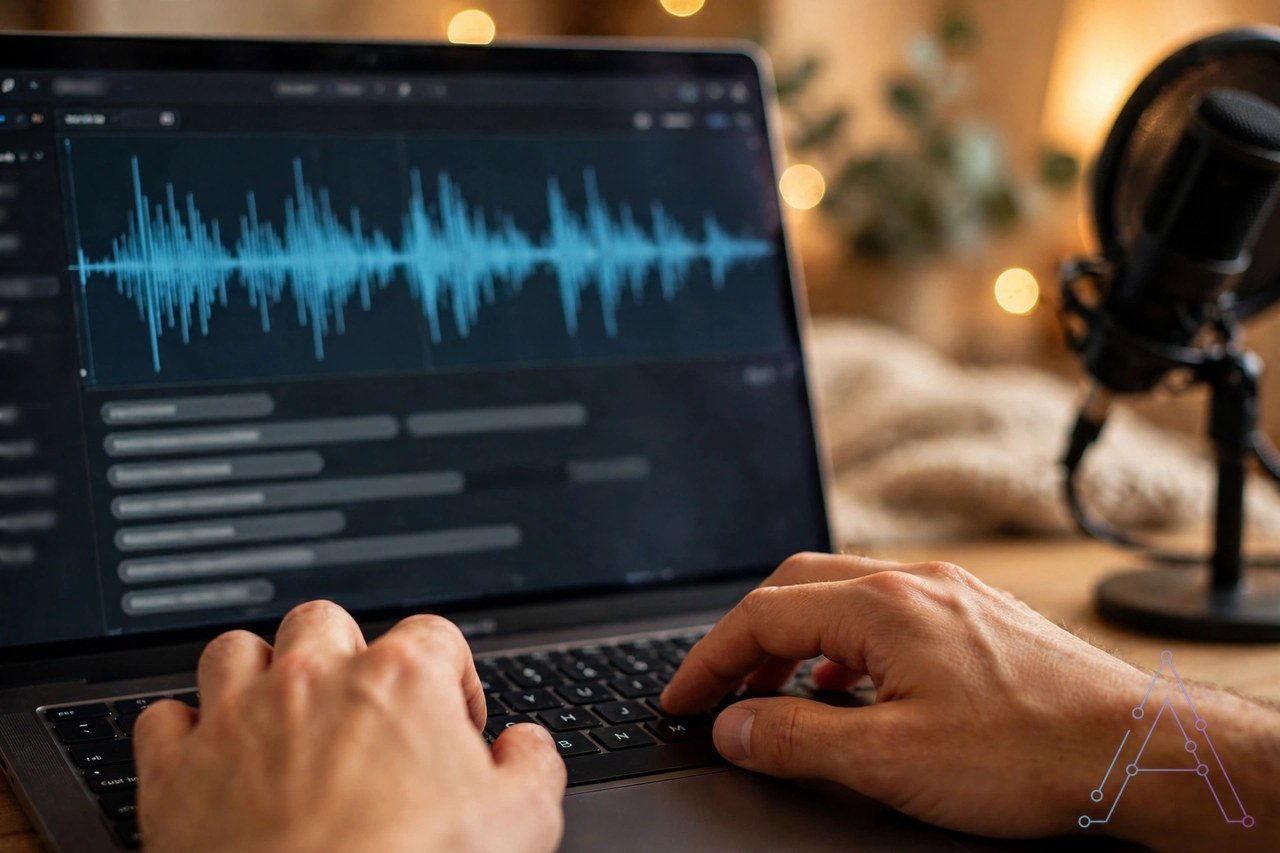
You literally ask it in plain words — “remove the filler words and tighten this up” — and it goes off and does the job. In addition, it strips filler words, cuts long pauses, pulls out the best clips for social media, and even writes show notes and short summaries from your recording.
Think of it as a fast junior editor. However, you still give the final cut a once-over (you should — AI gets things wrong sometimes), but the dull first pass is already done for you.
Studio Sound: Fix Bad Audio in One Click
Bad audio kills good videos. For example, we’ve all watched a video where the person sounds like they’re talking from inside a cupboard. Viewers leave fast.
Studio Sound fixes that with a single click. In addition, it wipes out background noise and pulls your voice up front so it sounds clear and close — almost like a studio mic. For home recordings, honestly, it’s a lifesaver. Students and new creators with zero fancy gear benefit the most here.
Overdub and AI Speech: Fix Words by Typing
Ever recorded a great take and then realised you said one wrong word? In fact, normally you’d re-record the whole thing. Not here.
With Overdub — now called AI Speech — you just type the correct word and Descript speaks it in your voice, right inside your video. But (and this matters) you have to record a consent statement first, so nobody can clone your voice without your clear permission. Good rule, that.
For example, you can fix small slips or voice a full script this way. One catch: word changes work in English only, and each change tops out at 250 characters.
Remove Filler Words and Retakes
We all say “um” and “uh” way more than we think. Descript hunts them down in your transcript and wipes them out in one step. Magic? Feels like it.
Same deal with retakes. Said a line twice? In fact, Descript keeps the good take and bins the bad one. On a long video, this one feature alone can hand you back 20 to 30 minutes. That’s real time.
Eye Contact and Green Screen
Eye Contact is a sneaky-good one. For example, if you read from a script, it adjusts your gaze so it looks like you’re staring into the camera — even when your eyes are actually on your notes.
Green Screen, meanwhile, swaps your background with one click. In fact, no actual green screen needed behind you. Great for course videos and talking-head clips shot in a messy bedroom (no judgment — we’ve all been there).
Clips for Social Media
Here’s a workflow win: Descript can scan a long video, pick the strongest moments, and turn them into short clips with captions baked in. Ready for Shorts, Reels, or TikTok.
One podcast episode can suddenly give you five or six short clips for the week. As a result, that’s a week’s worth of social content from one recording session. Not bad at all.
Rooms: Record Guests From Anywhere
Rooms is Descript’s remote recording feature for podcasts and interviews — up to 10 people in one session.
Each guest records on their own device, which keeps the sound clean (no more “sorry, my Wi-Fi” audio). In addition, after the call, every track lands in your project, ready to edit. Simple.

Captions, Translation, and Dubbing
In fact, Descript captions your video by itself, which matters more than people realise — loads of viewers watch with the sound off.
On higher plans you can also translate captions and dub videos into other languages. For example, Descript lists captions in 61 languages and dubbing in 30 languages. If your audience spans more than one country, that’s a genuine edge.
Descript Pricing in 2026
Okay, pricing — and there’s one thing you need to grasp first, because it trips people up.
Descript runs on TWO meters. In fact, media hours count every minute of audio or video you upload or record. AI credits pay for the AI tools — Studio Sound, Underlord, voice work, that kind of thing. Neither meter rolls over to next month. Both reset when your plan renews. Therefore, keep an eye on both, or you’ll get a surprise mid-month.
Here’s the full price list for 2026, checked against Descript’s pricing page and recent reviews:
| Plan | Yearly price | Monthly price | Media hours | AI credits | Export |
|---|---|---|---|---|---|
| Free | $0 | $0 | 1 hour a month | 100, one time only | 720p, with watermark |
| Hobbyist | $16 a month | $24 a month | 10 hours a month | 400 a month | 1080p, no watermark |
| Creator | $24 a month | $35 a month | 30 hours a month | 800 a month | 4K, no watermark |
| Business | $50 a month | $65 a month | 40 hours a month | 1,500 a month | 4K, no watermark |
| Enterprise | Custom | Custom | Custom | Custom | Custom |
How to Pick the Right Plan
All prices are per editor, per month. Yearly billing saves you up to 33% compared to paying monthly — worth it if you’re sure you’ll stick around.
The free plan? It’s a fair test drive, nothing more. One media hour a month, 100 AI credits that never renew, and exports stuck at 720p with a watermark.
Hobbyist suits someone posting once or twice a month. Similarly, Creator is the one for a weekly show, with room to grow. Business is built for small teams — Brand Studio, dubbing, and priority support thrown in.
One heads-up, though: AI credits can vanish fast if you hammer the AI tools on long videos. Creator and Business let you buy extra hours and credits. Hobbyist doesn’t offer top-ups at all, so if you pick Hobbyist, plan your month carefully.
Descript Pros and Cons
Pros
- Editing by text is way faster than timeline editing for talking videos. No contest.
- Studio Sound turns rough home audio into something clean and close.
- Filler-word and retake removal save real minutes on every single edit.
- The free plan lets you test the whole workflow — no card needed, no pressure.
- Captions, clips, and dubbing all live in one tool, so you jump between apps less.
- Rooms gives you clean remote recordings for podcasts and interviews.
Cons
- Two meters (media hours plus AI credits) can feel fiddly to track.
- AI credits burn through fast on long videos with lots of AI jobs.
- It’s just not the tool for cinematic edits, motion graphics, or heavy effects work.
- AI Speech word changes are English-only, capped at 250 characters each.
- Free plan exports are 720p only, with a watermark slapped on.
- Hobbyist has no top-ups — a busy month can leave you stuck at the limit.
Who Should Use Descript?
Short answer: if you make talking videos, Descript will probably make your life easier. In fact, podcasters, YouTubers, course creators, coaches — they get the most out of it.
Freelancers too. If you edit client videos full of speech — client calls, tutorials, social clips — everything moves faster here. And speed is money when you bill by the project.
Students? The free plan is genuinely enough to learn on. In fact, one media hour a month covers short class projects and test videos just fine.
Now, who should skip it? For example, if you make films, music videos, or heavy visual edits, look elsewhere — a normal editor like Premiere Pro gives you far more control for that stuff.
And if your budget is tight but your AI appetite is big, be careful. That credit meter can push your real cost up quicker than you’d expect. Watch your usage closely in month one.
Descript vs Other Tools
So how does it stack up against the tools you probably already know?
Premiere Pro gives you total control over every frame — but expect weeks of learning before it feels natural. In contrast, Descript is miles easier on day one, yet it can’t touch Premiere for complex visual work. Different beasts.
Audacity is free and brilliant for pure audio. But it does zero video, and there’s no AI transcript workflow at all. Descript does both jobs in one place — for a price, obviously.
CapCut is quick and fun for short social videos on your phone. But it’s not built for long talking videos or podcasts. However, Descript wins the long-form speech game; CapCut wins the quick phone edit. Horses for courses.
Bottom line: if you want ONE tool to record, edit, caption, and clip, Descript is hard to beat. If you want deep visual effects, pair it with a traditional editor instead of forcing it.
If you also make videos with AI tools, check out our other reviews on the site: our Pictory AI review, our Fliki AI review, and our ElevenLabs review. Each one covers a different job, so you can match the right tool to each project.
How to Start With Descript in 5 Steps
- Sign up for the free plan on Descript’s site. No card needed to start — that’s a nice touch.
- Record a short test video, or upload a clip you’ve already got lying around.
- Wait for the transcript, then fix any words Descript got wrong (there will be a couple).
- Delete the filler words, cut one boring part, and run Studio Sound once.
- Add captions, then export at 720p to see your first finished result.
Do that test and you’ll know pretty quickly whether text editing clicks for you. In fact, most people figure it out within the first hour, one way or the other.
Frequently Asked Questions
Is Descript free?
Yes — there’s a free plan. You get one media hour a month and 100 AI credits that don’t renew. Exports come out at 720p with a watermark.
Is Descript good for beginners?
Yes, it’s one of the easiest editors a new creator can pick up. Seriously — if you can edit a text file, you can edit a video in Descript. And the timeline is still there underneath if you ever want it.
Does Descript work for podcasts?
Absolutely — podcasts are one of its best uses, full stop. Rooms records guests cleanly, the transcript makes cuts fast, and Studio Sound rescues dodgy home audio in a single click.
Can Descript clone my voice?
Yes, but only with your clear consent. You record a consent statement first. After that, AI Speech can speak typed words in your voice or patch up small slips in a recording.
Which Descript plan is best for YouTubers?
For most YouTubers, Creator is the best pick. Thirty media hours, 800 AI credits, and 4K export for $24 a month on yearly billing. Hard to argue with that.
Does Descript work on Mac and Windows?
Yes, it runs on both Mac and Windows. There’s no Linux version at this time, sadly.
Can I publish straight to YouTube?
Yes — export your finished video and share it to YouTube, or just send it out with a simple web link straight from Descript.
Does Descript have a watermark?
The free plan does add a watermark to exports. Every paid plan exports clean, starting with Hobbyist at 1080p.
Descript for Students and Freelancers
Students get real value out of Descript, even without paying a cent. Class talks, group projects, short video tasks — they all edit fast here.
Picture this: you record a 10-minute talk for class. Next, upload it, fix two or three transcript errors, chop the filler words — and 15 minutes later you’ve got a clean video with captions. That’s a seriously good return for a first attempt.
Freelancers, here’s a thought: podcast editing is a service people will actually pay for. Loads of small podcasters hate editing their own shows. They’d much rather hand it to you.
With Descript, once you know the tool, you can turn one episode around in under an hour. As a result, that speed means more clients in the same week. Just keep an eye on your media hours — client files chew through that meter fast.
Smart move? Ask clients to cover the plan cost, or fold it into your fee. Your time is the real product here, and Descript protects it well.
Common Descript Problems and Fixes
No tool is perfect, and Descript has a few quirks worth knowing before you dive in.
First up: AI credits running dry mid-month. Annoying, but avoidable. Save the AI jobs for your final pass instead of the first draft — run Studio Sound once at the end, not five times on test clips.
Second: transcripts missing words in noisy audio. In fact, the fix is boring but true — record somewhere quiet, close to the mic. Clean audio in means a clean transcript out, and a clean transcript means a fast edit. Garbage in, garbage out, as they say.
Third: that 720p watermarked export on the free plan. Test on short clips first, see if the workflow clicks, and only then jump to Hobbyist for clean 1080p exports.
Fourth: long videos feeling sluggish on a weak laptop. Close your other apps while editing, and split monster recordings into parts. Not glamorous advice, but it works.
None of these are deal-breakers. But knowing them in week one beats discovering them mid-project.
Final Verdict
So — does Descript live up to the hype? For one clear reason, yes: it makes talking-video editing feel easy. And when editing feels easy, you publish more often. That’s the whole game, really.
The text workflow is the star of the show. In addition, filler removal, Studio Sound, and Clips all build on it beautifully. Pricing is fair for what you get — just keep both meters in sight: media hours AND AI credits. Forget one and it’ll bite you.
For most creators, Creator is the smart buy. Room to grow, 4K export, enough credits for weekly videos. Start free, test it on a real video, and only upgrade when that free hour runs dry.
Editor’s Choice: Descript Creator plan, $24 a month on yearly billing.
Sources
- Descript pricing and plans, checked October 2026: https://max-productive.ai/blog/descript-pricing/
- Descript review with feature and pricing details: https://appscribed.com/software/descript-video-audio-podcast-transcription-editor/
- Descript review with plan comparison: https://lemonsight.com/tool/audio/descript
- Descript review with pricing and AI credits: https://sonix.ai/resources/descript-review-pricing/
- Descript review with text-based editing details: https://professionalstoolkit.com/articles/descript-review